Searching Verified Content
You don't need an account to search. Just type a query and get results from verified experts. Here's how to get the most out of it.
Searching
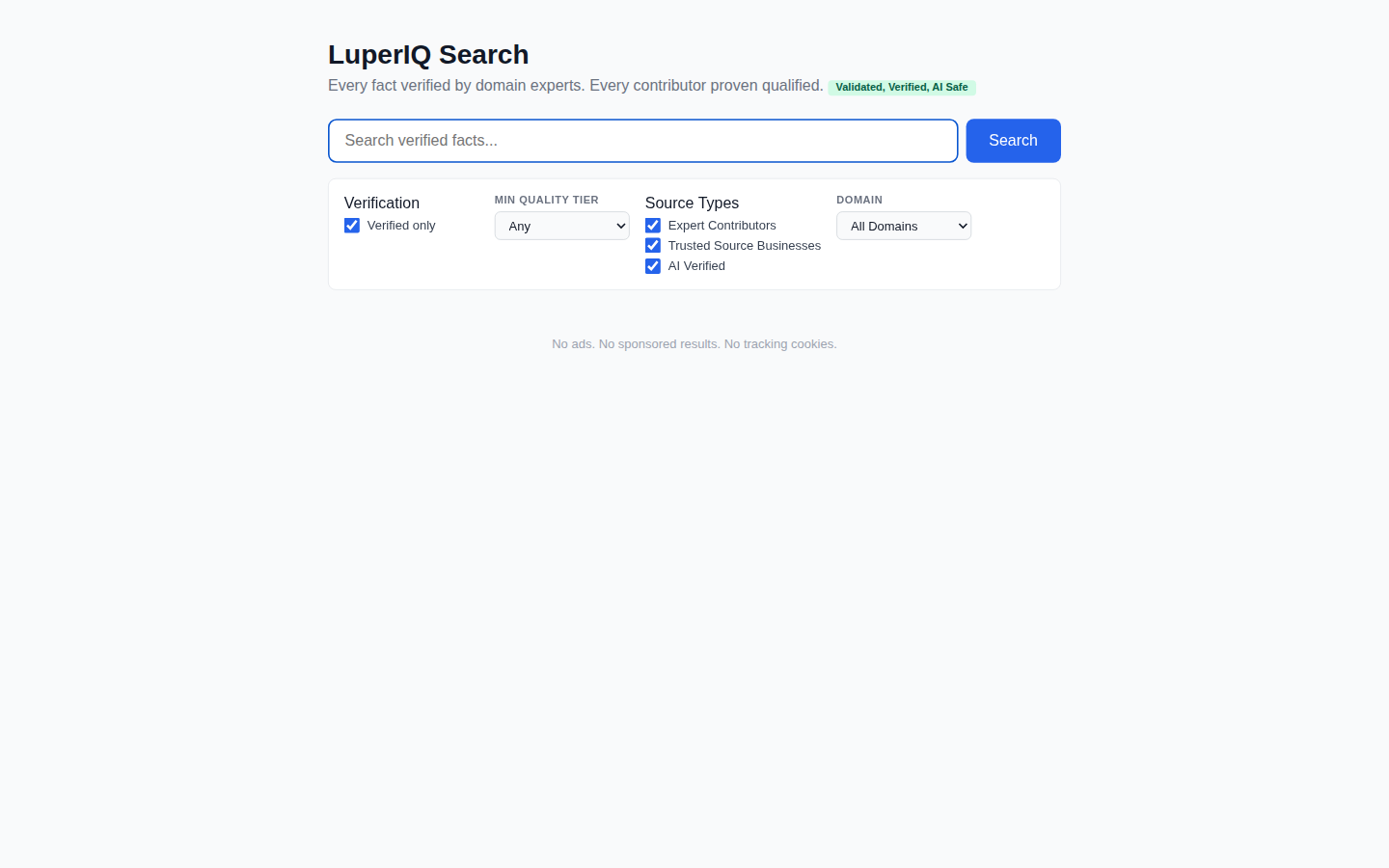
Type your question in the search bar and hit Search. Results come from verified experts, trusted source businesses, and AI-verified content. Every result has been reviewed for accuracy.
Understanding Results
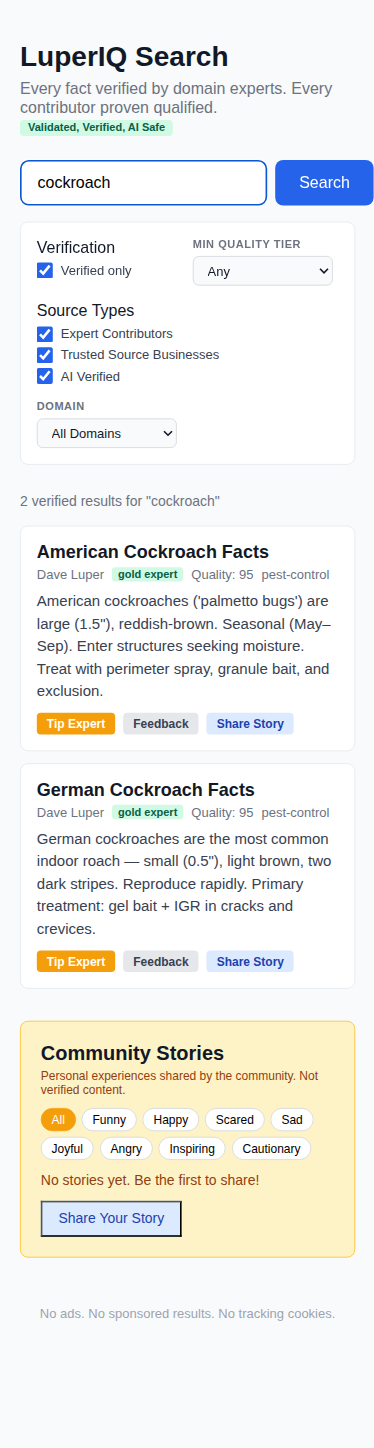
Each result card shows: the title, the author's name, their expertise badge (like gold_expert), a quality score (0-100), and which domain it belongs to (pest control, HVAC, plumbing, etc.). The gold_expert badge means the author is a proven professional in their field.

Using Filters
Fine-tune your results with four filter groups: Verified Only (toggle to include unreviewed content), Quality Tier (filter by Bronze, Silver, or Gold quality), Source Types (Expert Contributors, Trusted Sources, AI Verified), and Domain (filter by industry like Pest Control, HVAC, Plumbing, Electrical, Landscaping, Restaurant, or Salon).

Viewing Entry Details
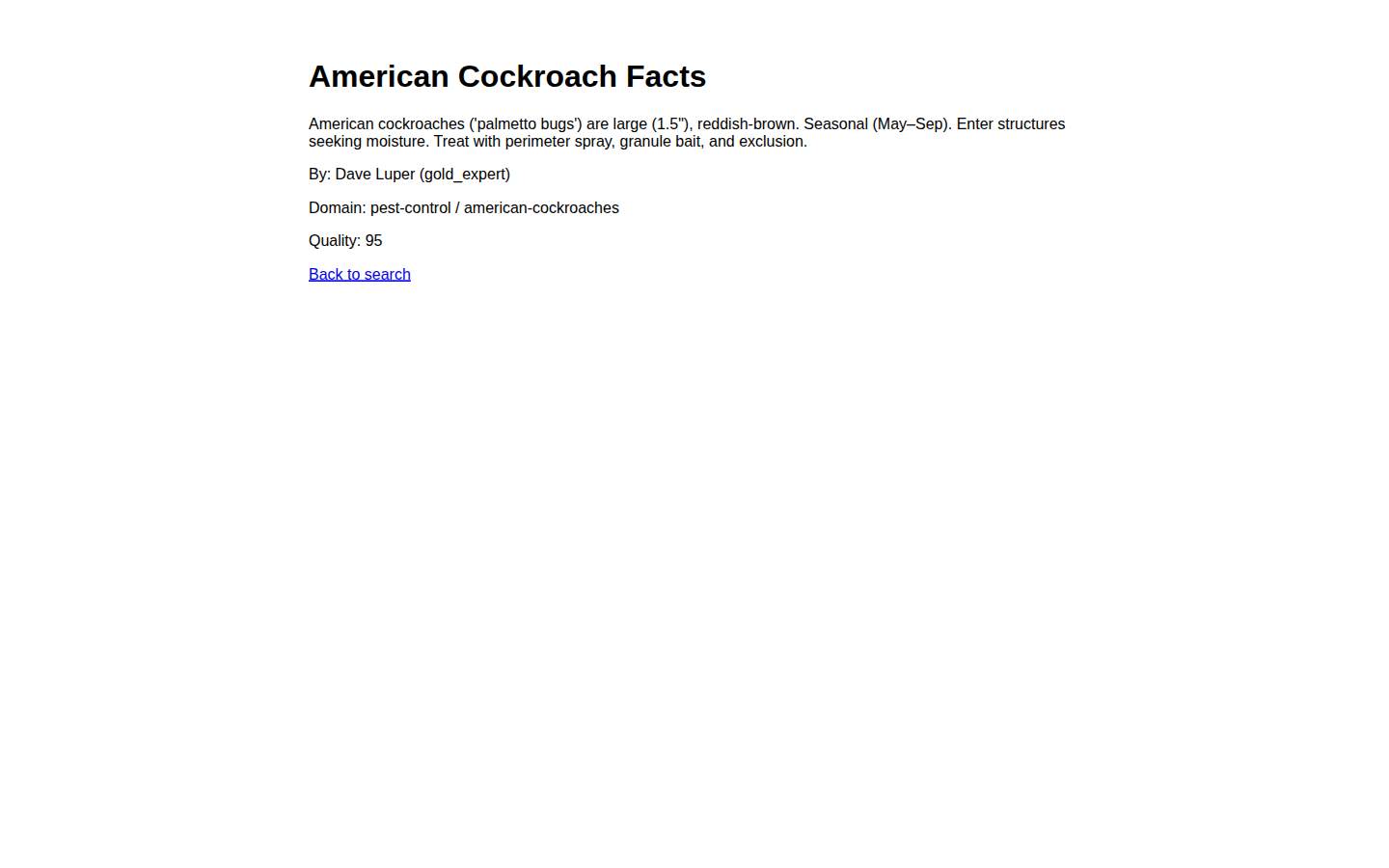
Click any result to see the full entry with the complete summary, author attribution, domain and topic classification, and quality score.
Community Stories
Below search results, you'll find Community Stories — personal experiences shared by real people. These are clearly labeled as unverified with a disclaimer. Use the emotion filter buttons (Funny, Happy, Scared, Sad, Joyful, Angry, Inspiring, Cautionary) to browse stories by how they feel.

Submitting Feedback
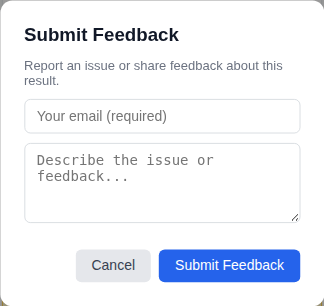
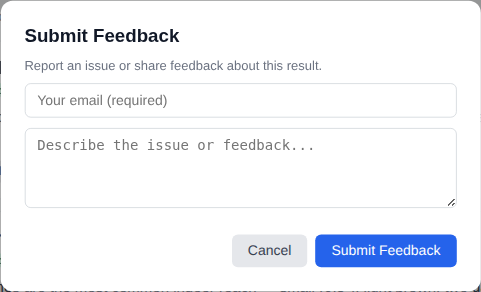
See something wrong? Click the Feedback button on any result to report an issue. Enter your email address and describe the problem. No account needed — just an email so the team can follow up. Your feedback goes to the admin moderation team for review.
Works on Mobile
Everything works on your phone. Filters stack vertically, result cards fill the screen width, and modals resize to fit. The same features are available on every device.