
Pest Control Customer Walkthrough
The complete customer experience — from browsing services to booking an appointment, accessing the customer portal, and exploring financing options. This walkthrough uses our General Pest Co. demo site to show exactly what your customers will see.
1. The Company Homepage
When a customer visits your website, the first thing they see is your company homepage. This page is automatically generated from your Company Profile, Service Catalog, and Theme Studio settings. No coding is required — everything is configured through the admin panel.
The homepage includes your company name, tagline, a prominent call-to-action button ("Book a Service"), and a list of your most popular services with pricing. Customers can immediately see what you offer and how much it costs.
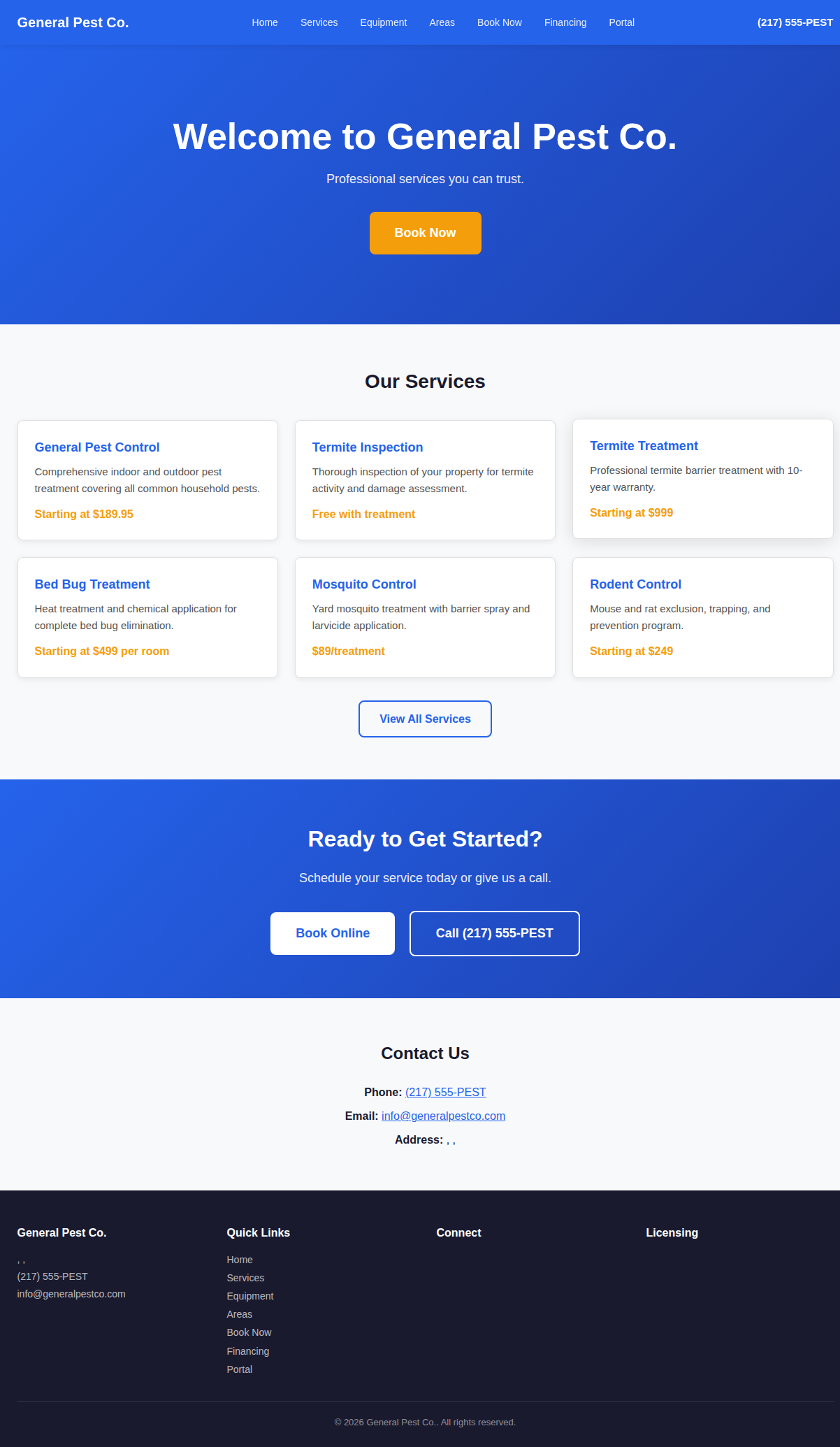
- Company name and tagline pulled from Company Profile
- Service cards with pricing pulled from Service Catalog
- "Book a Service" call-to-action button links directly to the booking wizard
- Contact information (phone, email, address) displayed in the footer
- Fully responsive — works on phones, tablets, and desktops
2. Service Detail Page
When a customer clicks on a specific service, they see a detailed service page with the full description, pricing, and a "Book This Service" button. This page gives customers all the information they need to make a decision before booking.
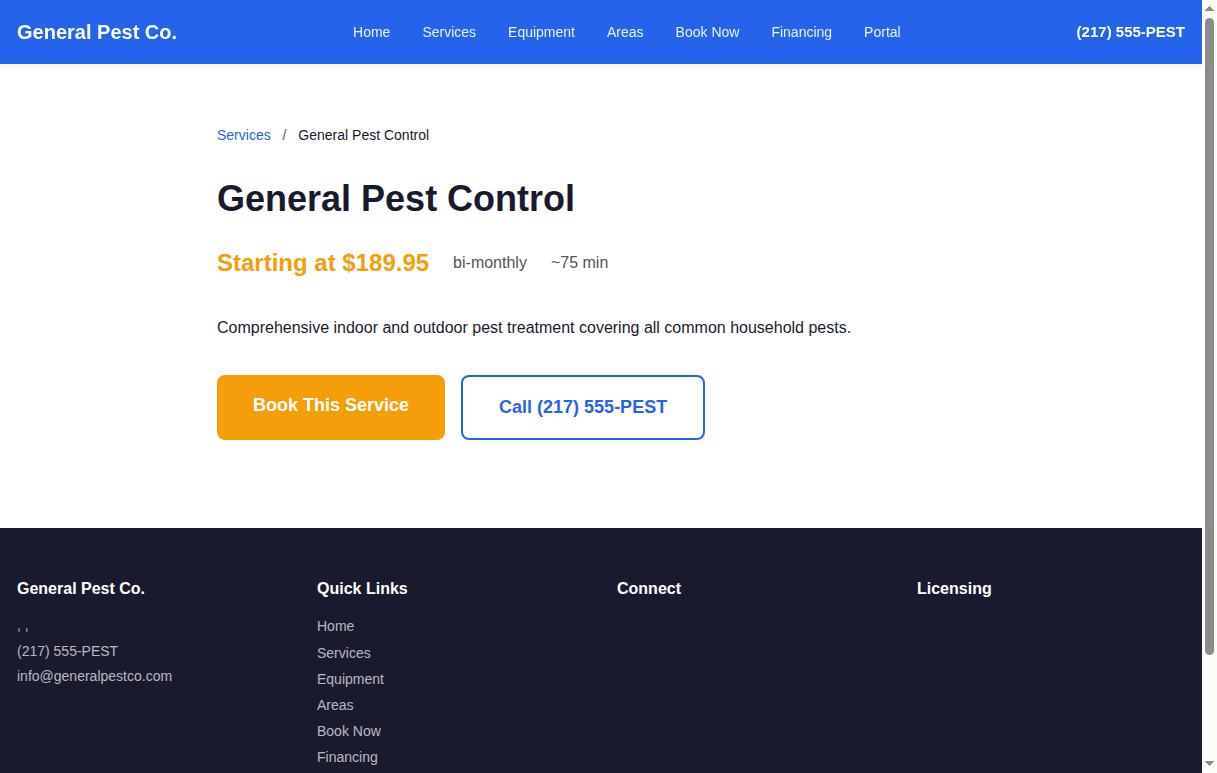
Each service page includes the service name, price, detailed description, what's included, and any relevant notes about preparation or follow-up. The "Book This Service" button takes the customer directly into the booking wizard with that service pre-selected.
3. Services Listing
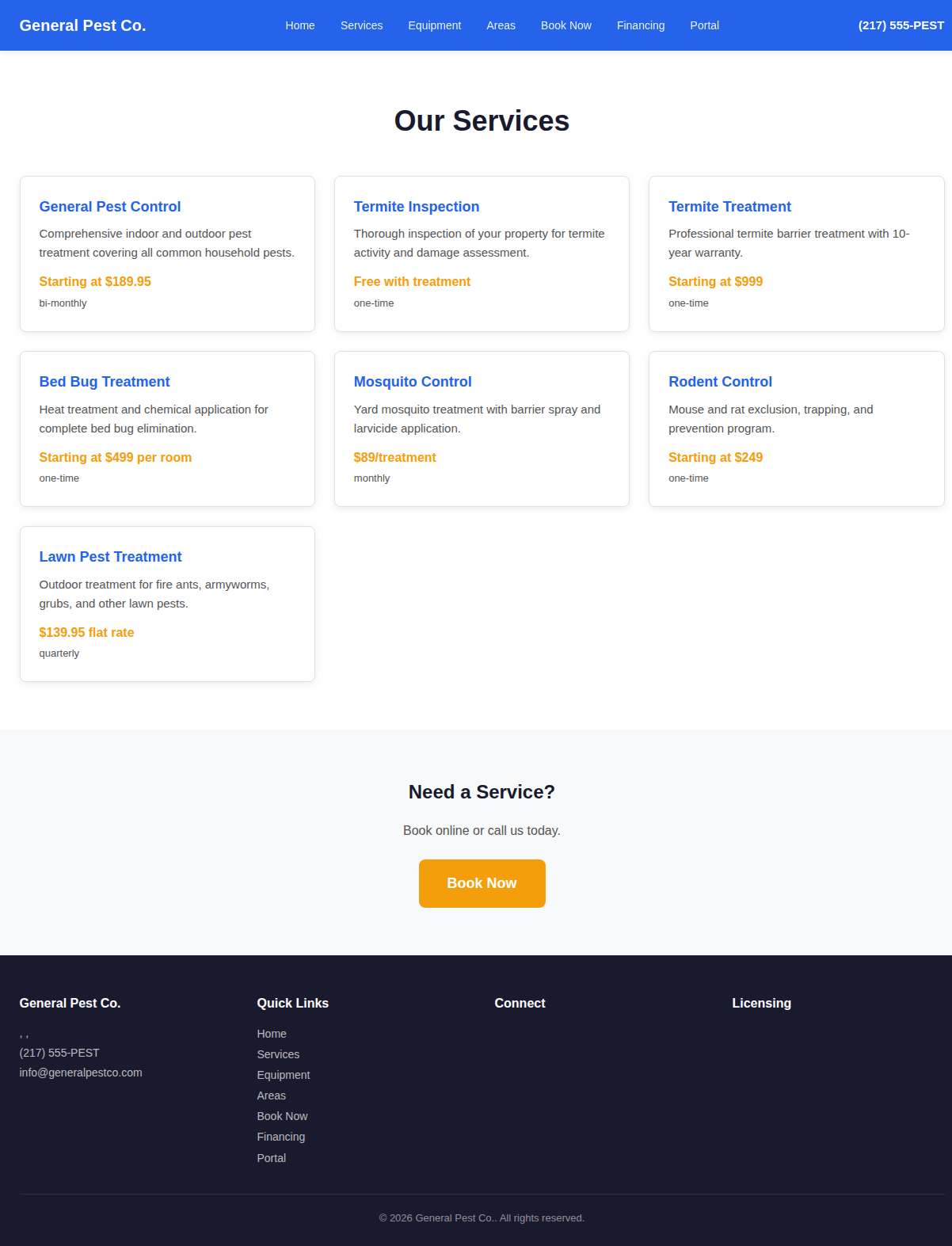
Customers can also browse all available services on a single listing page. This shows every service you've configured in the Service Catalog with pricing and short descriptions. It's a great way for customers to compare services and find what they need.
4. Booking Wizard — Step by Step
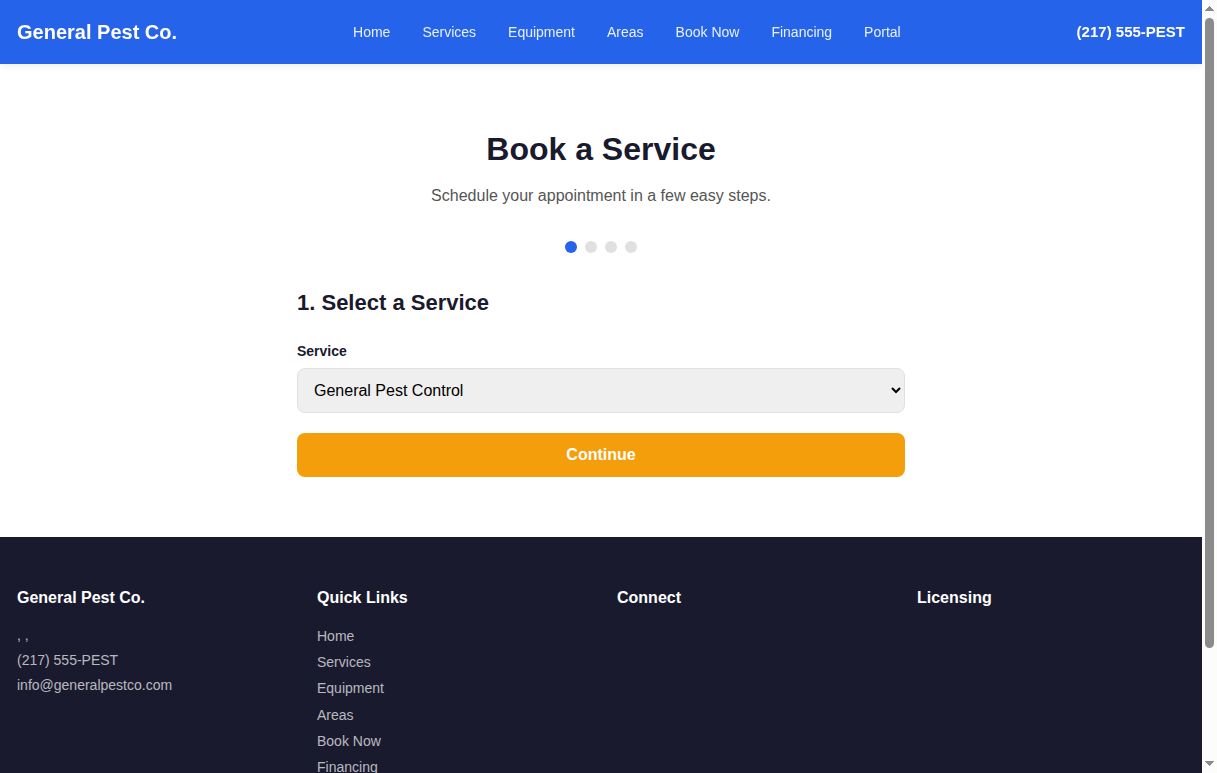
The booking wizard is a 4-step process designed to be simple and fast. Customers can book an appointment in under 2 minutes. Each step collects only the information needed, with clear progress indicators showing where they are in the process.
1 Select a Service
The first step asks the customer to select which service they need. If they clicked "Book This Service" from a service page, this step is pre-filled. Otherwise, they choose from a dropdown list of all available services.
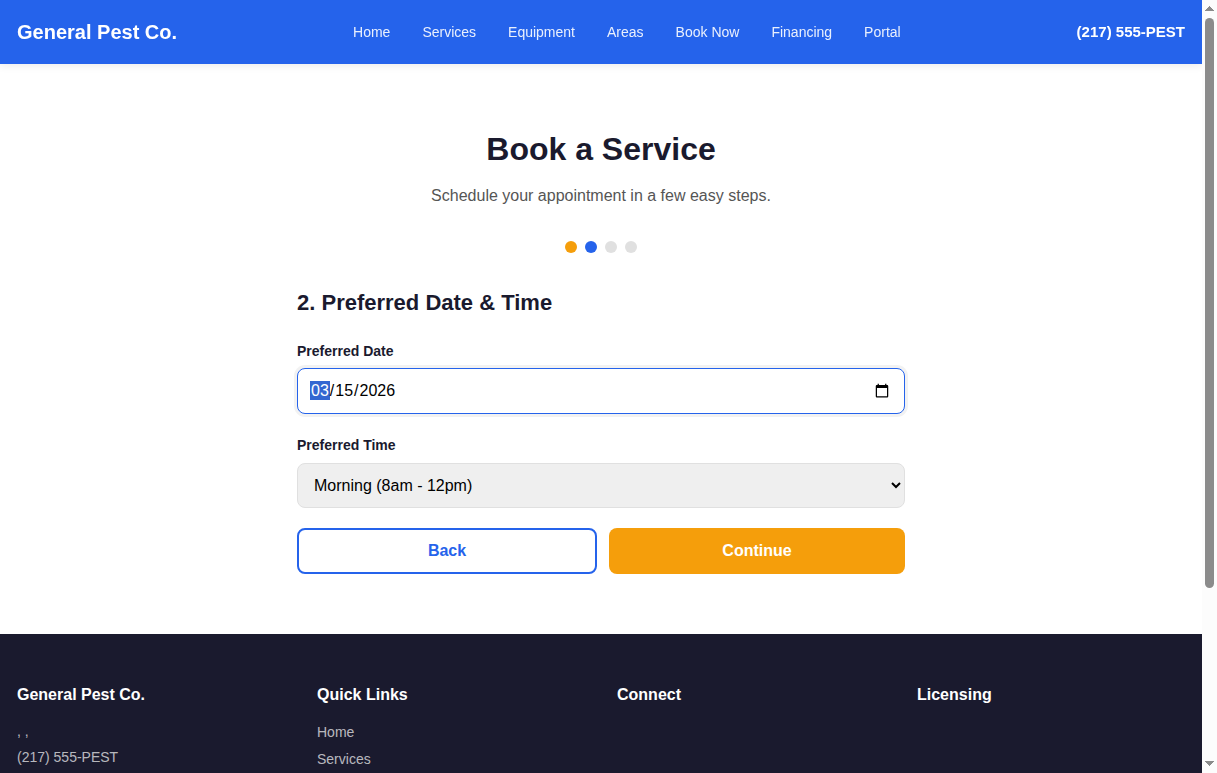
2 Choose Date and Time
In step 2, the customer picks their preferred date and time slot. The calendar shows available dates, and the time slots are based on your business hours and technician availability configured in the admin panel.
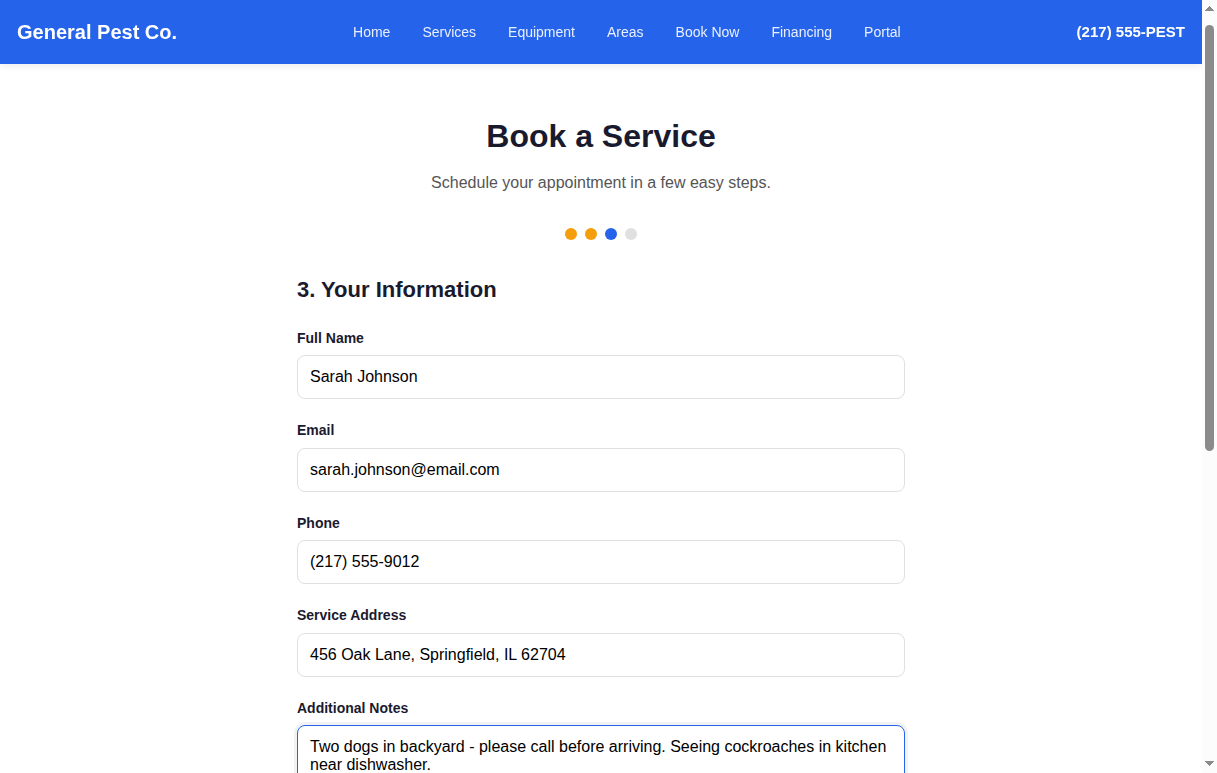
3 Customer Information
Step 3 collects the customer's contact information and service address. This includes their name, phone number, email, and the property address where service will be performed. For returning customers, this information can be pre-filled from their customer portal account.
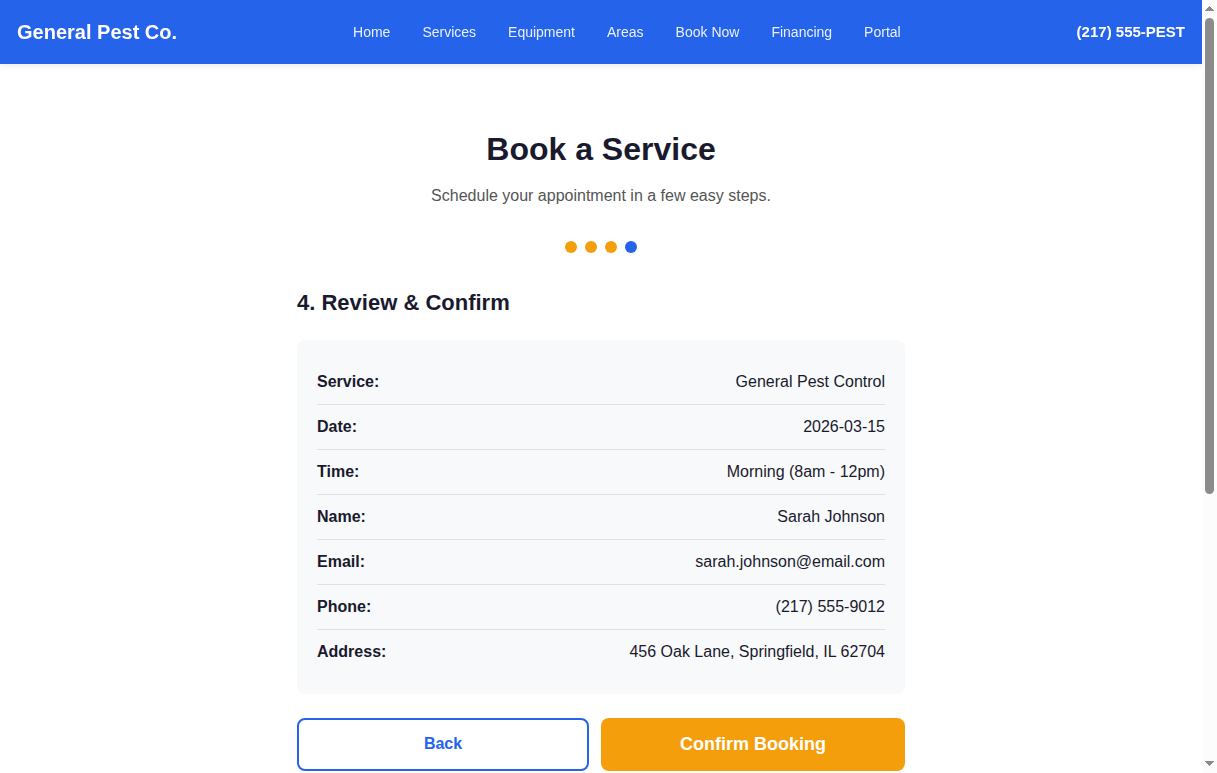
4 Review and Confirm
The final step shows a complete summary of the booking for review. The customer can see the service selected, date and time, their contact information, and the estimated price. They can go back to any previous step to make changes, or click "Confirm Booking" to finalize.
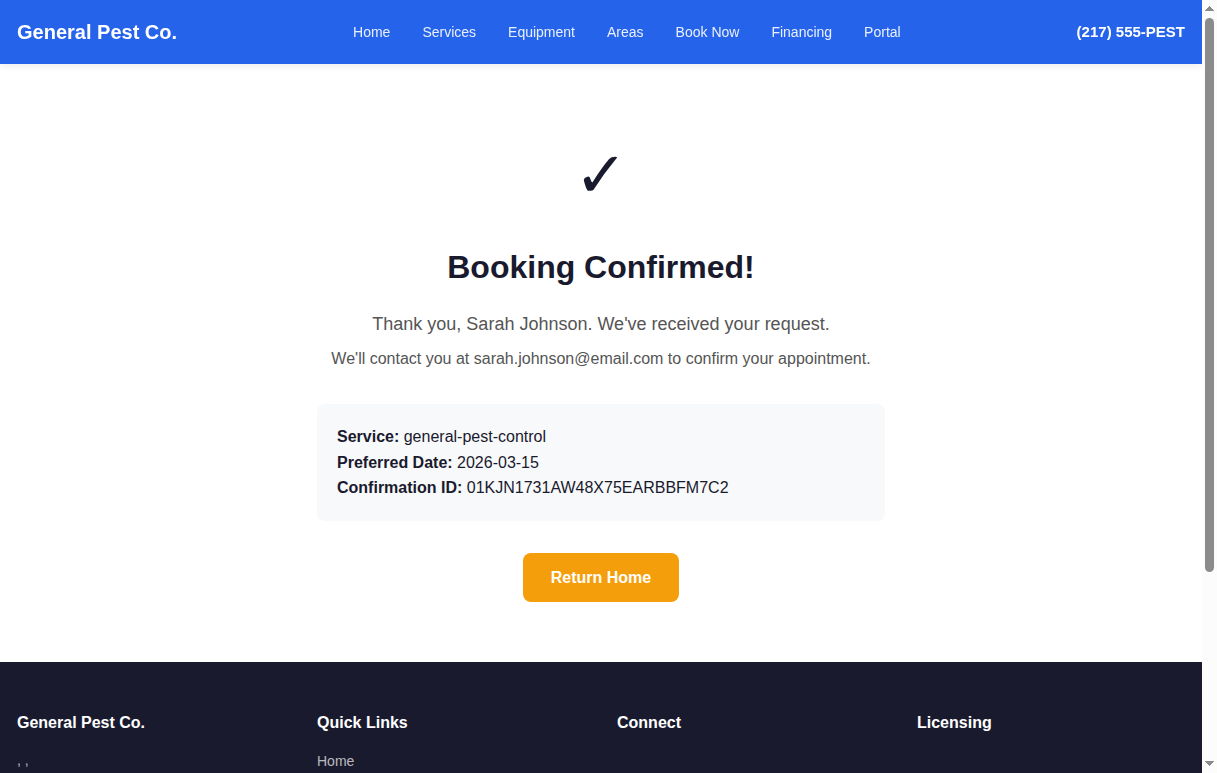
Booking Confirmed!
After confirming, the customer sees a success page with their confirmation ID and a personalized thank-you message. They also receive instructions about what to expect next — the booking request appears in the admin's Booking Requests queue, where it can be assigned to a technician via the Dispatch Board.
5. Customer Portal
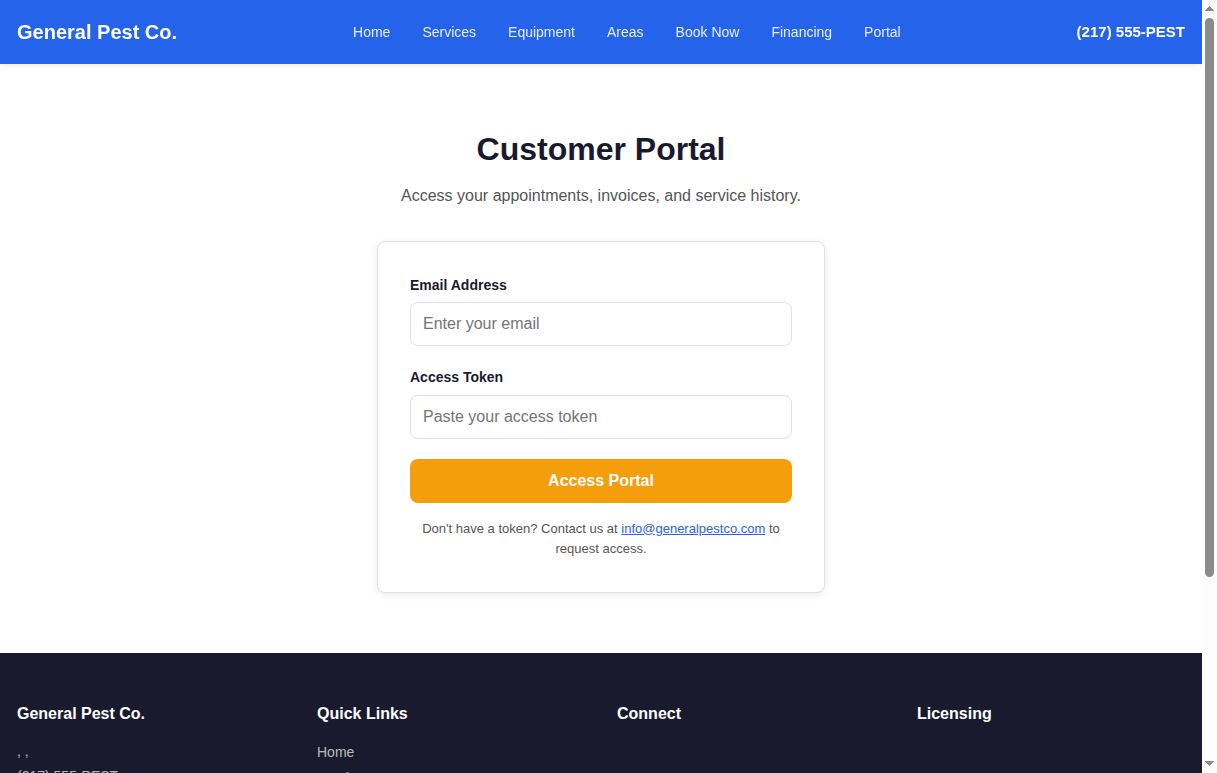
The Customer Portal gives your customers a secure way to view their service history, upcoming appointments, and account details. Access is token-based — no password to remember. Customers enter their email and an access token that's sent to them after their first booking.
6. Financing Options
For larger jobs like termite treatment or full-home pest protection plans, the financing page helps customers understand their payment options. This page is powered by the Financing Module and integrates with Stripe for secure payment processing.
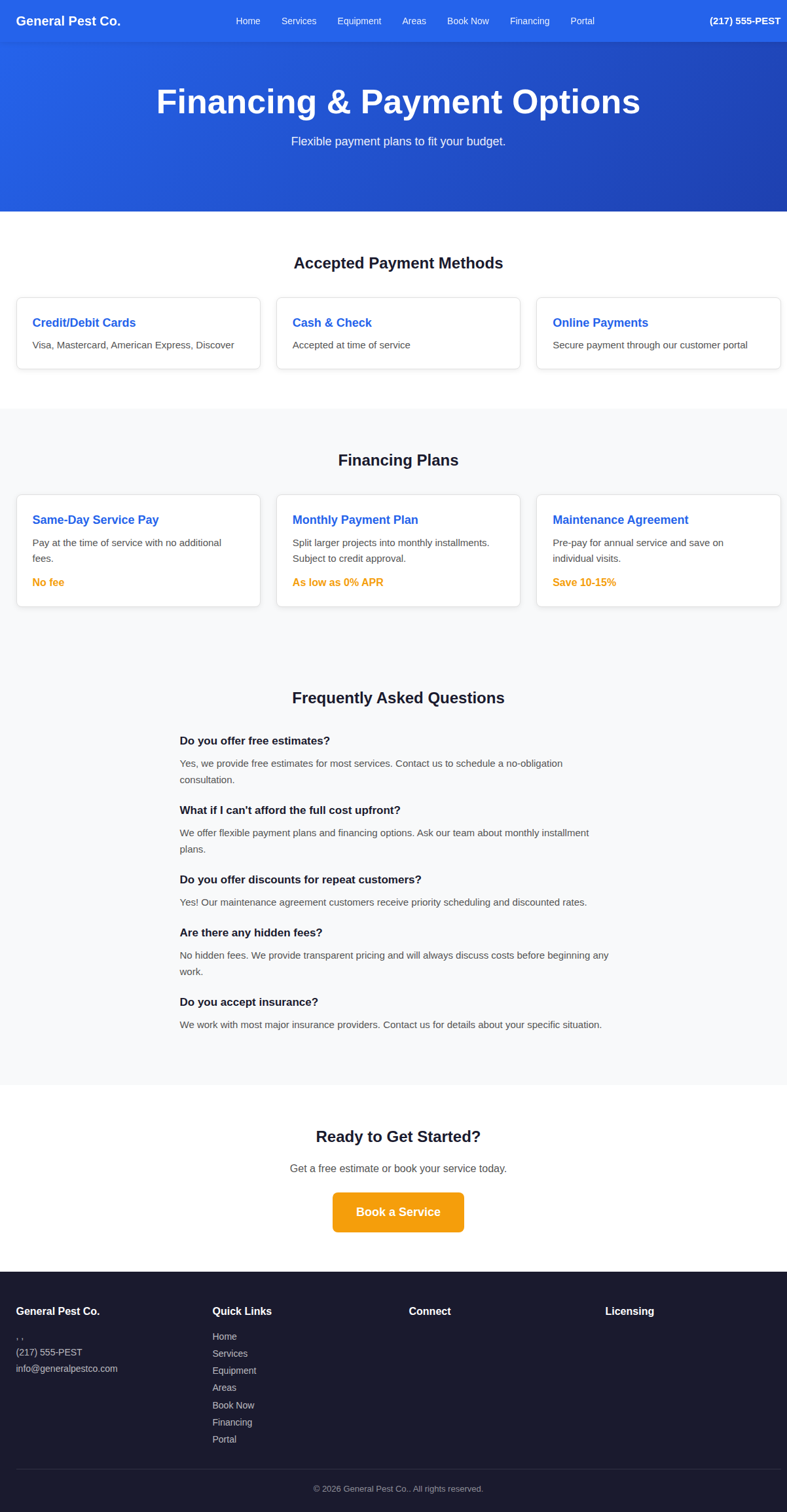
- Multiple payment methods supported (credit/debit cards via Stripe)
- Financing plans for larger services (termite treatment, annual contracts)
- Clear FAQ section addressing common billing questions
- Secure checkout powered by Stripe — PCI compliant
Summary: The Complete Customer Journey
From the moment a customer lands on your website to booking an appointment, everything is designed to be fast, clear, and professional. Here's the complete flow:
- Browse Homepage — See your company info, services, and pricing at a glance
- View Service Details — Get full information about any specific service
- Book an Appointment — 4-step wizard: select service, pick date/time, enter info, review & confirm
- Receive Confirmation — Unique confirmation ID and next-step instructions
- Access Customer Portal — Token-based login to view service history and upcoming appointments
- Explore Financing — Payment options for larger services, powered by Stripe
• Admin Walkthrough — Managing services, technicians, bookings, and invoices from the admin panel
• Technician Walkthrough — The field tech mobile app: check-in, work logs, chemical tracking, GPS, signatures
• Customer Walkthrough (you are here) — The public website, booking wizard, customer portal, and financing